
Leaving Google without breaking anything: the step-by-step method
Email, documents, calendar, photos, phone, business profile: everything often hangs on a single Google account. I am leaving it myself. Here is the method, step by step, without losing or breaking anything.
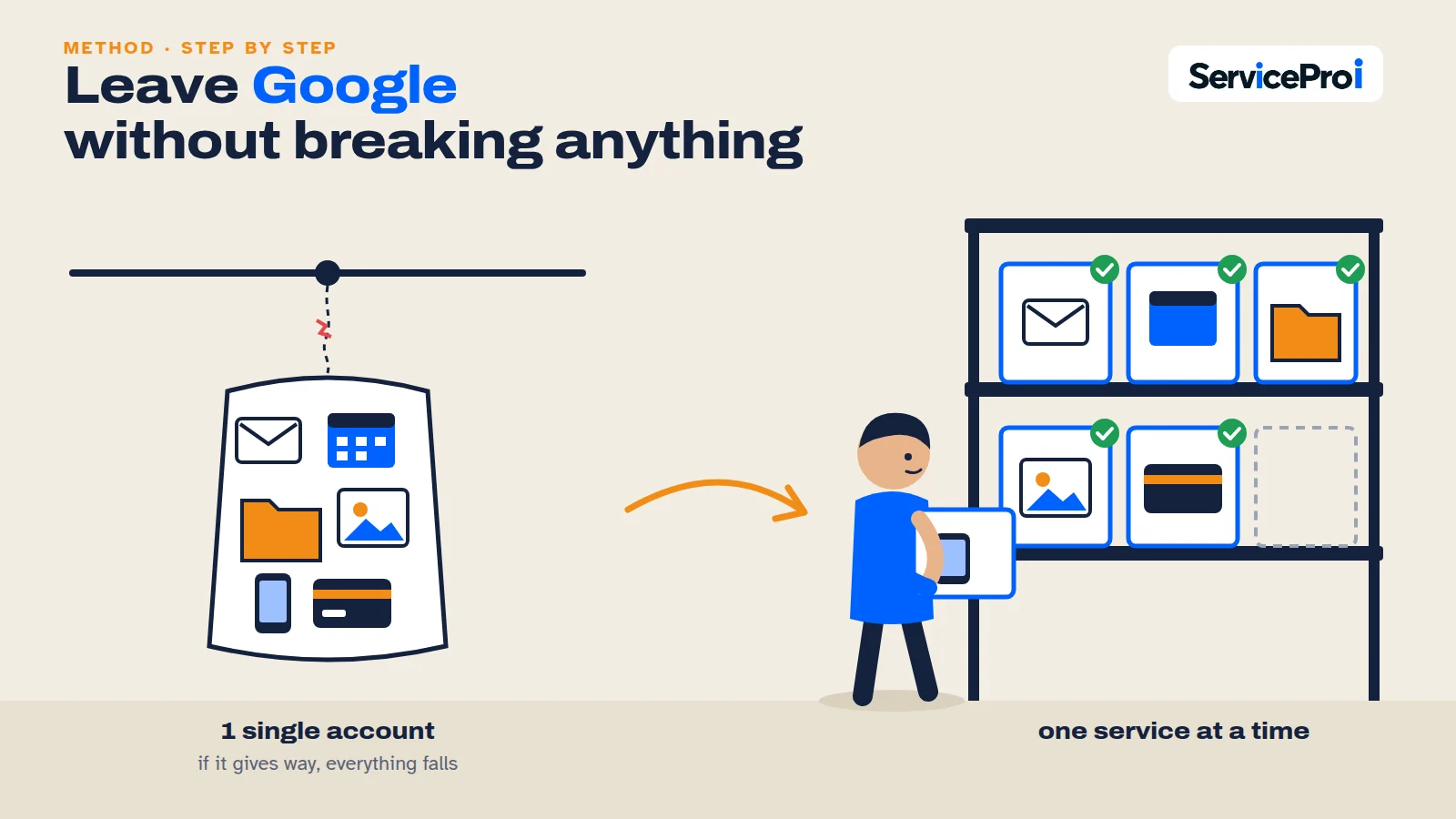
I am leaving Google. Not on a whim: little by little, with a method.
I'm sharing it here, for free. It works for an individual, a small business or a non-profit.
The real problem: one account for your whole life
Count them up. With your Gmail address, there are probably:
- your emails, going back years;
- your documents in Drive;
- your calendar and contacts;
- your photos;
- your Android phone;
- your Google Business Profile;
- and every site where you "Sign in with Google".
All of it rests on a single account, with a single company: Alphabet, Google's parent company.
If that account is blocked, hacked or suspended by mistake, everything falls at once. And there aren't many people to call.
Why take back control
Your data drives its business model. Alphabet makes its living from advertising. Your habits, your searches and your movements feed that model.
The law that applies may not be yours. Alphabet is an American company, subject to American law, including when your data is stored in Europe.
Your digital life shouldn't depend on a single player. It's not about "good" or "bad". It's about prudence, just as you don't keep all your money in one account.
I'm not telling you to leave everything tomorrow. I'm telling you to stop depending on a single player.
The 5-step method
1. Take stock, without touching anything
Before moving house, you walk round it.
- Your emails: note who writes to you at your Gmail address. Bank, tax office, benefits, insurance, energy supplier, shops, social networks… Each one is an account to move one day.
- Your Drive: list your folders, their size, when they were last changed.
- Your "Sign in with Google" connections: in your Google account, under Security, you can see the apps that use your account to sign in.
You will be surprised: you often discover dozens of services you had forgotten about.
2. Sort: essential, useful, useless
- Essential: money, administration, health, housing, energy, phone, insurance.
- Useful: work tools, regular purchases, transport.
- Useless: old newsletters, ads, accounts you no longer use. These you don't migrate: you unsubscribe or delete the account.
This sorting often halves the list. It's a good clear-out too.
3. Switch by priority, one service at a time
- Start with money (bank, online payment), then administration, then housing, energy and insurance, then work.
- One service at a time: you change the address, wait for the confirmation email in your new inbox, confirm, tick it off.
- Always go through the app or type the site's address yourself, never through a link received by email. Scammers love a house move.
- Forward your emails from Gmail to your new address throughout the transition. You won't miss anything.
- Get your files back with Google Takeout, Google's official export tool, then store them with your new service.
4. Keep watch for two or three months
Keep an eye on your Gmail inbox. Every email that still arrives there is a forgotten service. You switch it, and so on.
After a few weeks, only ads are left.
5. Put Google to sleep, not in the bin
Don't delete your Google account straight away. Keep it open, with forwarding on, like an old postal address.
Some uses still depend on it, for example your Google Business Profile. And a dormant account costs nothing.
The tip that changes everything: your own domain name
If you can, get an address in your own name, such as contact@yourbusiness.com.
Why? Because the day you change provider, your address doesn't change. You move the mailbox, not the address. You never have to do this work again.
Otherwise, you simply swap one dependence for another.
What to replace Google with? Several options
There isn't one right answer. Here are serious alternatives, to choose according to your needs and budget.
Email, calendar, files
- Proton (Switzerland): encrypted email, calendar, storage, password manager. Free version, paid plans to go further. It's what I use.
- Infomaniak (Switzerland): email, storage and calendar, with environmentally committed hosting.
- Mailo (France): simple email, with a free version.
- Tuta (Germany): encrypted email and calendar.
- Nextcloud: open-source software for your files, calendar and contacts, offered by many hosting providers. Or you can host it yourself if you're comfortable with that.
Search, browsing, maps
- Firefox as your browser.
- Qwant, DuckDuckGo or Ecosia as your search engine.
- OpenStreetMap and the apps that use it (for example Organic Maps) for maps.
To go further
The French non-profit Framasoft has been offering many free services and advice for years on how to "de-google". It's a very good way in (mostly in French).
Take time to test. Most of these services have a free version or a trial.
What I take away from my own migration
- Taking stock is the most useful step. That's where you realise how much everything hangs on one account.
- Sorting is a relief. A good part of what arrives in Gmail isn't worth moving.
- Don't rush. One service a day is fine. What matters is not breaking anything.
And you?
If your Google account disappeared tomorrow, what would you lose first?
Want to take stock before you start? Describe your situation: I'll help you see your tools and needs clearly.